Chapter 03 · Reporting
Reports in your brand.
Executive, board, technical, client review, licensing, device lifecycle and what-changed reports, in your brand, as PDF or Word. Build one with a live preview, save the layout, and send it monthly or quarterly as a link that expires.
Every page carries your workspace’s name, logo and colours in place of ours, on every plan; a trial’s reports add a small “Made with ConfigCheckup · Trial” line.
Reports, schedules and the client portal come on every plan
14 days of daily monitoring and alerts, every finding with its fix guide, and reports on up to 3 tenants, from your first connected tenant. No card. Then choose the plan that fits.
Every kind of report
One renderer, every kind of client report.
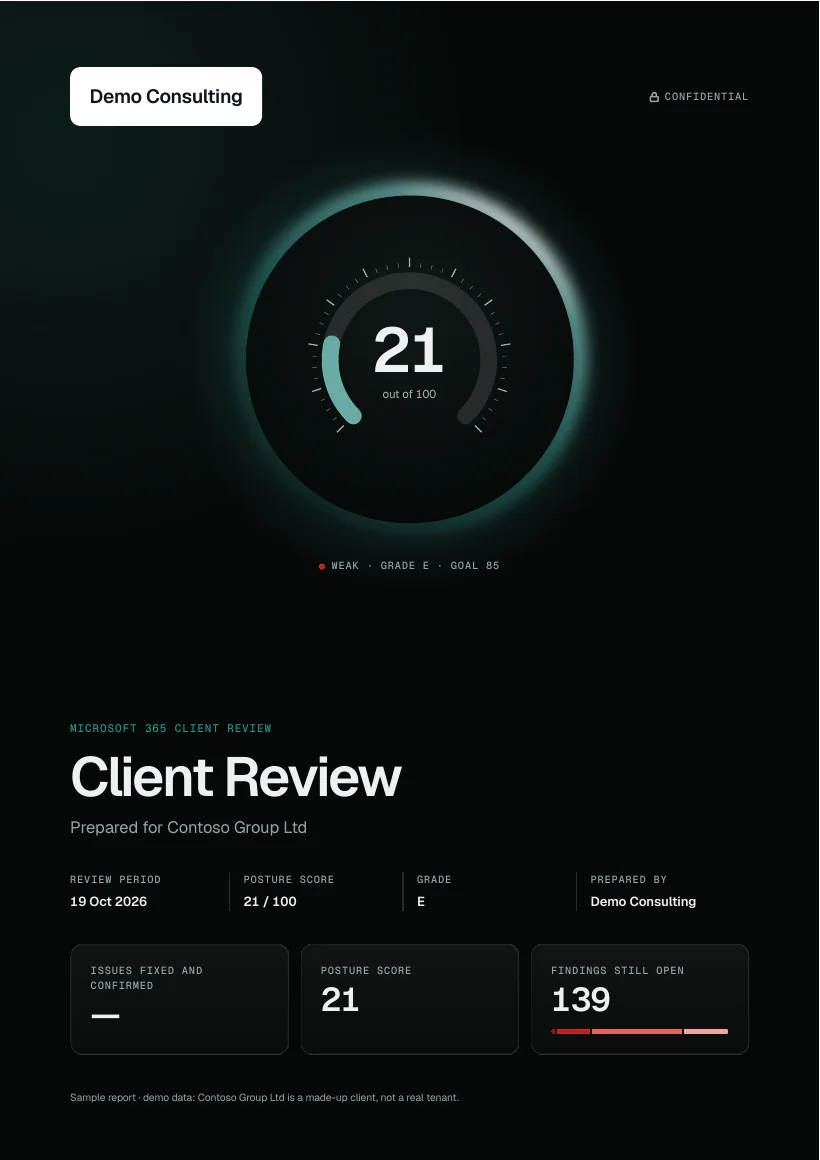
8 kinds of client report, each made from one of the client’s assessments with your logo, your colours and your contact details, and a portfolio report across clients. Below, the first page of each type the desk draws.
- Client review pack
 Executive summary
 Board summary
 Technical report
Every kind, and its sections
In the report builder each section can be left out, or moved up or down; the contents stay first and the closing page last.
Executive summary11 sections
Contents · Executive summary · Progress since last time · Score over the period · Security posture by domain · Remediation roadmap · Cyber Essentials readiness · Detailed findings · Licensing and cost · Appendix · About us
Technical report11 sections
Contents · Executive summary · Progress since last time · Score over the period · Security posture by domain · Remediation roadmap · Cyber Essentials readiness · Detailed findings · Licensing and cost · Appendix · About us
Board summary10 sections
Contents · Executive summary · Progress since last time · Score over the period · Security posture by domain · Remediation roadmap · Cyber Essentials readiness · Licensing and cost · Appendix · About us
Client review pack9 sections
At a glance · Score over the period · What we delivered · Work we did · Service levels · What needs attention · Devices and refresh budget · Next steps · About us
Device lifecycle7 sections
Fleet at a glance · Replacement budget · Replacement forecast · Asset register · Disposals · Devices to act on · About us
What changed7 sections
What changed · Score by area · Fixed and improved · New or worse · Marked done, not confirmed · Changes we made · About us
Licensing review7 sections
Licences at a glance · Seats by subscription · Where to save · Renewals coming up · Billed against Microsoft 365 · Savings made · About us
Microsoft 365 Copilot readiness6 sections
Readiness at a glance · Readiness by area · Before rolling out · Where to start · How Copilot is used · About us
The report builder
Choose what goes in. The report follows.
Reports › New report previews the whole report as you choose the type, the sections, their order and your own words. Try it here on a made-up client, Contoso Group Ltd.
Sections · 5 of 5 in
Also built the same way in the console: device lifecycle, what changed, licensing review, Microsoft 365 Copilot readiness.
Contents7 pages
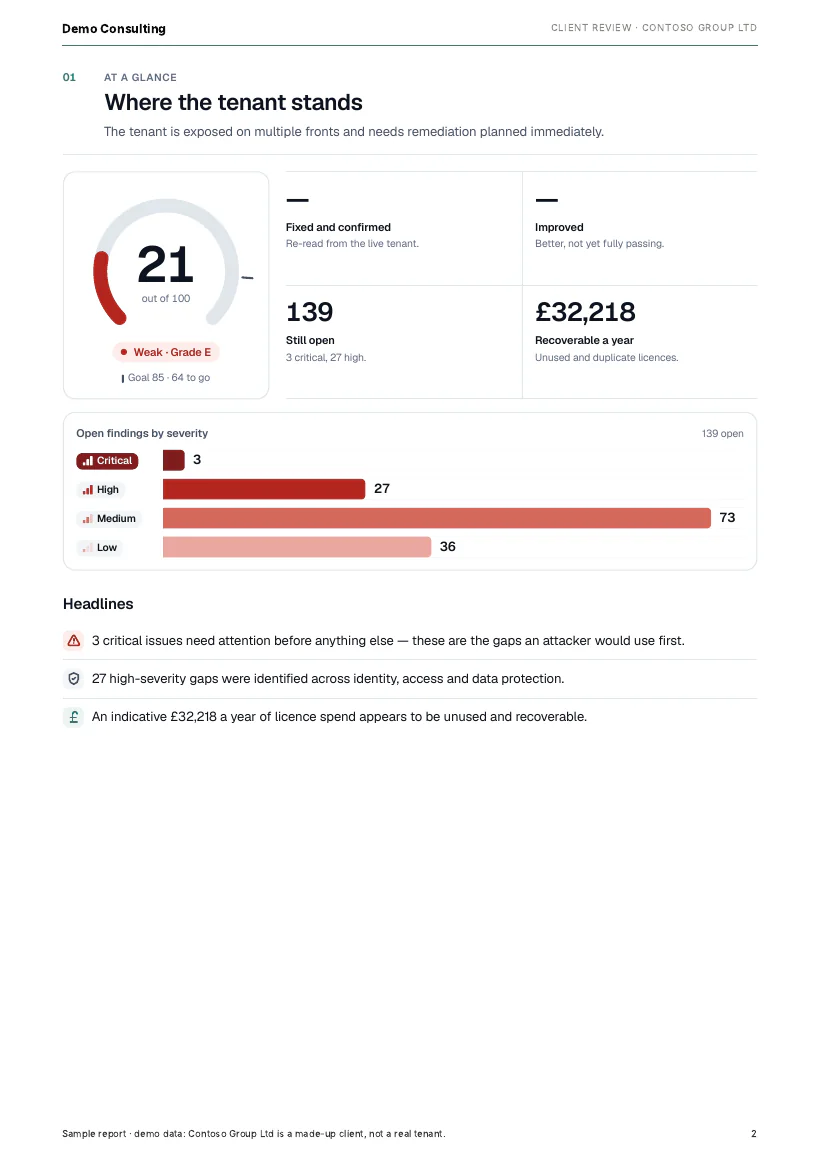
Download a sample client review (PDF, demo data, 606 KB)Download a sample executive report (PDF, demo data, 1 MB)
Schedules
Sent on a schedule, as a link that expires.
Set each client’s report once. It is made from their latest assessment and sent to their contacts with a short summary, in your brand.
- How often
- Monthly, quarterly or after every assessment, for each client.
- The link
- Sent as a link that lasts 30 days, not an attachment. A link can be stopped at any time.
- Your PSA
- Where you turn it on for a client, posted as a ticket for its company, with the summary and the link: HaloPSA, ConnectWise Manage, Autotask, NinjaOne and Kaseya BMS (beta).
- Your portfolio
- Once an Admin turns it on, a portfolio report across every client goes to your Owners and Admins, or the members you choose, on the 1st of each month.
- Plans
- Scheduled reports come on every plan.
The steps, in words
Step by step
01Reports › New report: choose the client, the type and the sections. The preview is the real renderer, so it shows the whole report as you go.
/reports/newDemo data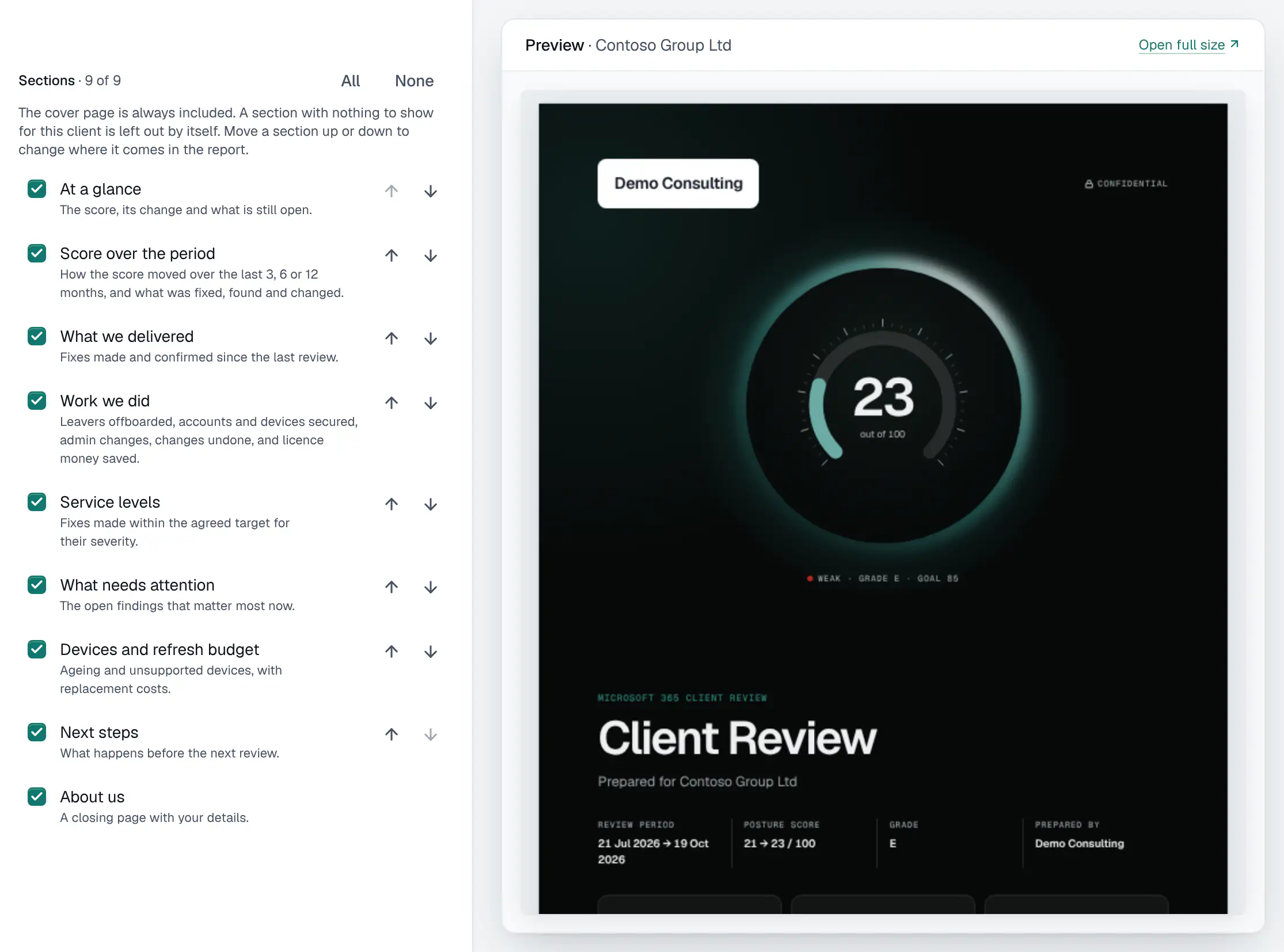
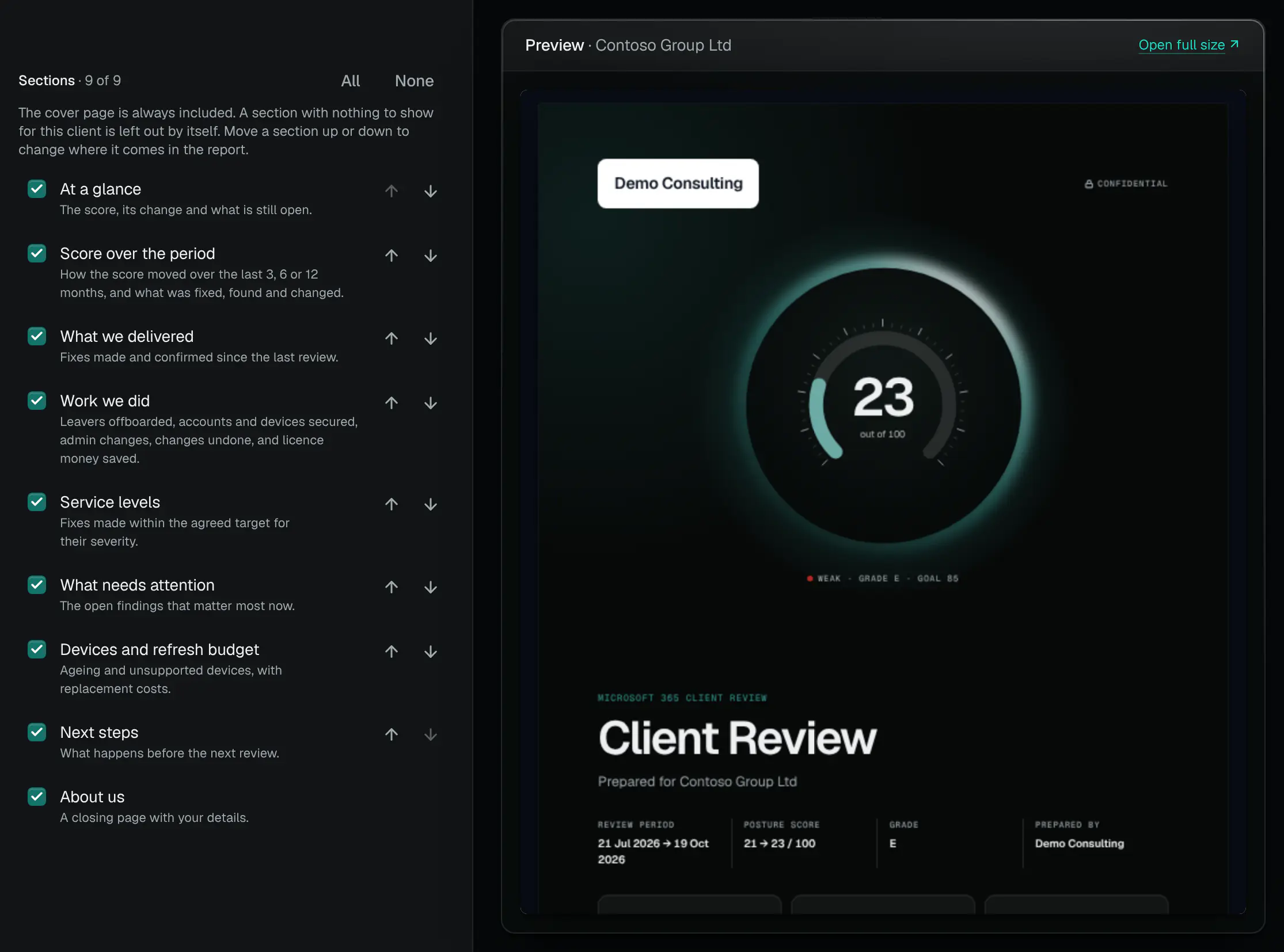
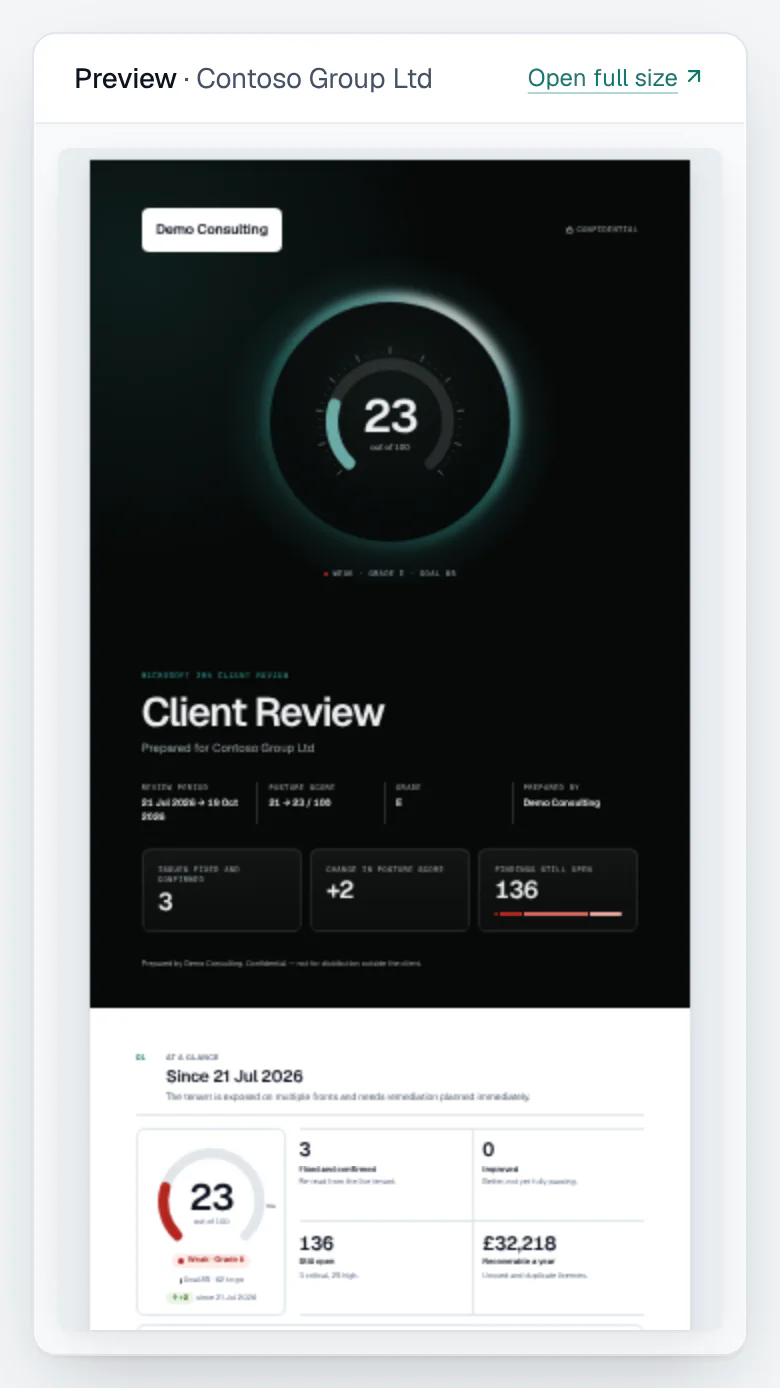
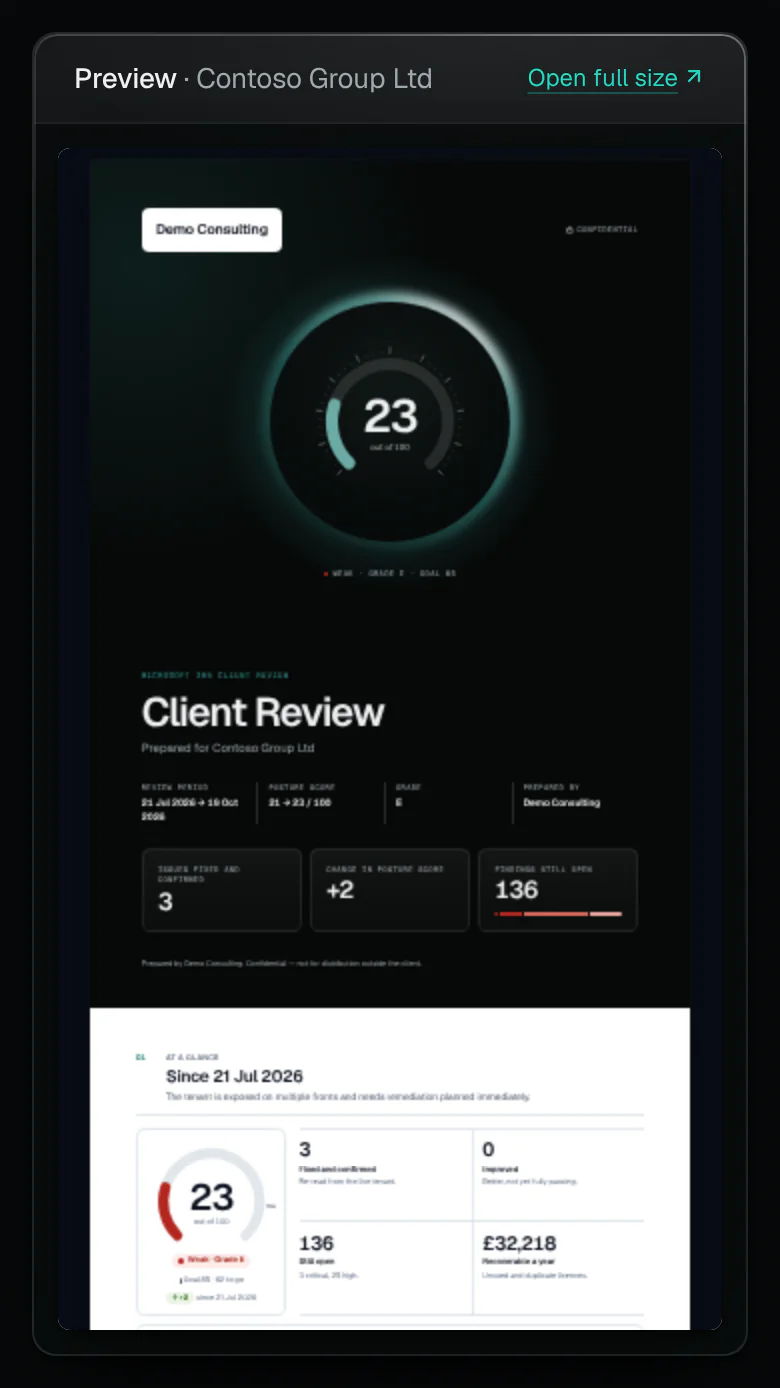
The builder previews the whole report as you choose. - Tick and order the sections
- The whole report, previewed as you choose
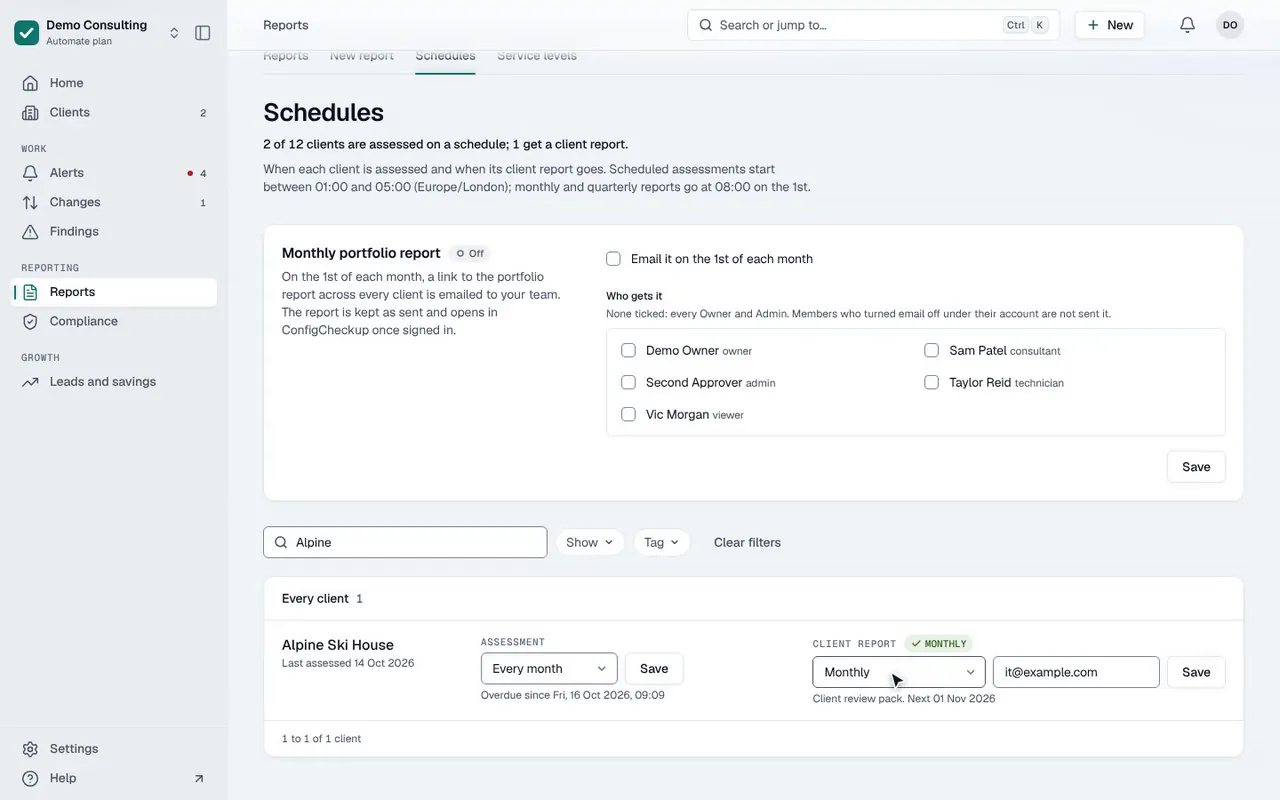
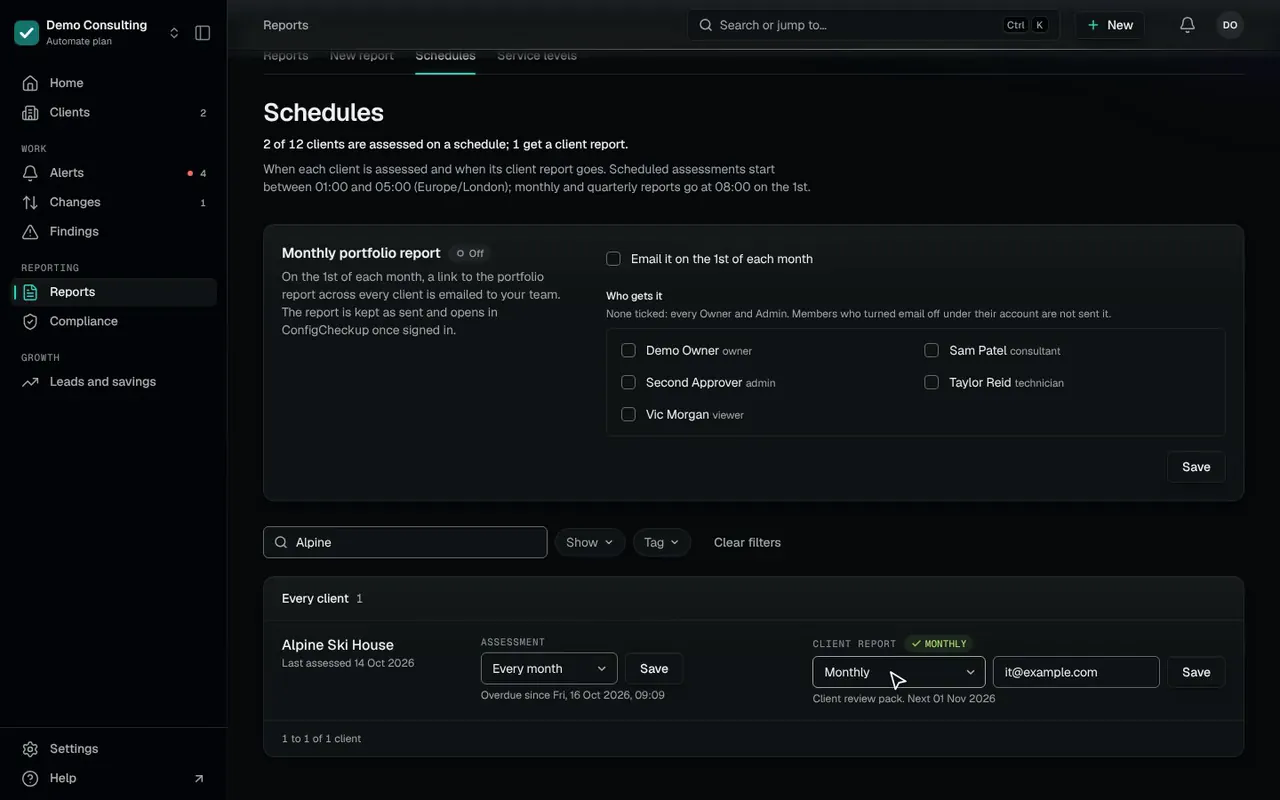
02Reports › Schedules: each client’s cadence and who gets it. This one goes monthly, as a link that expires.
/reports/schedulesDemo data

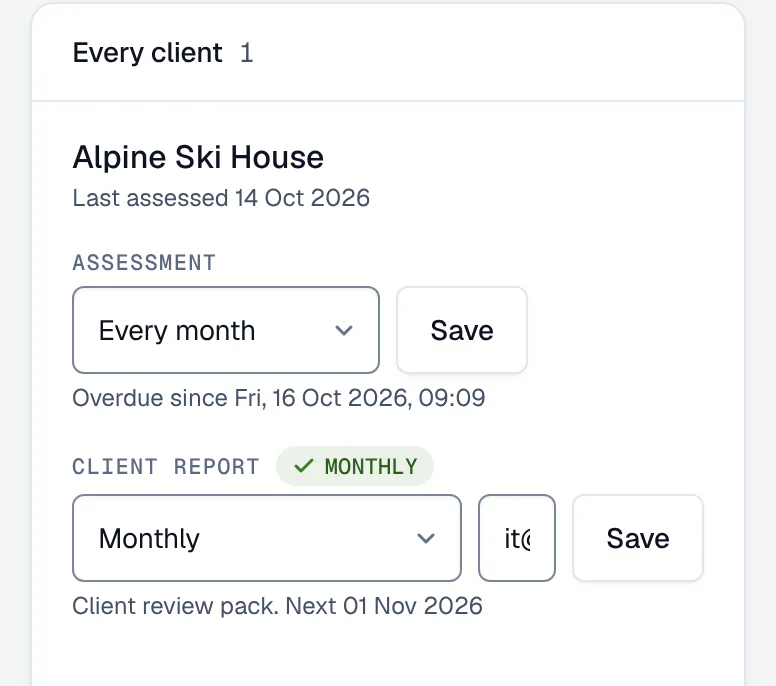
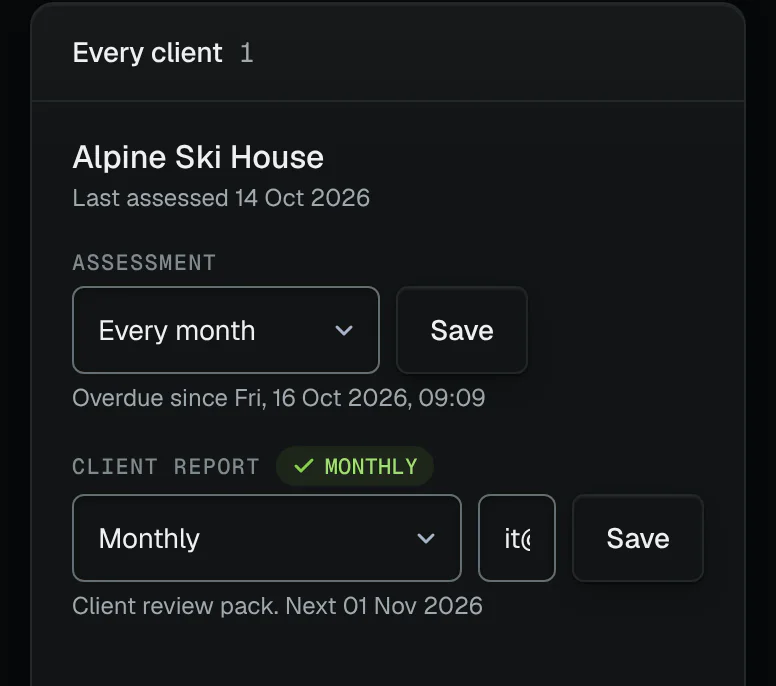
Monthly, sent as a link that expires. - The client
- Its report: monthly
- Who it goes to
The client portal
Between reports, a page they can open.
Each client gets a page in your brand with their score, its trend, the fixes confirmed and the next steps, which they can reply to.
The client portal comes on every plan
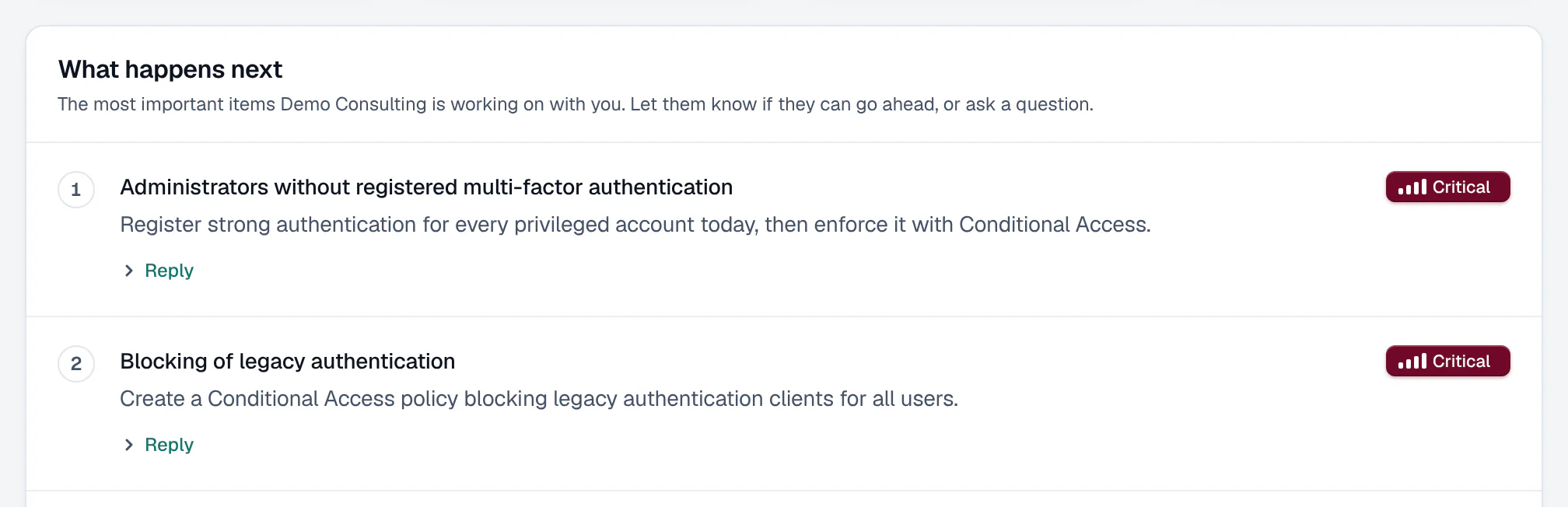
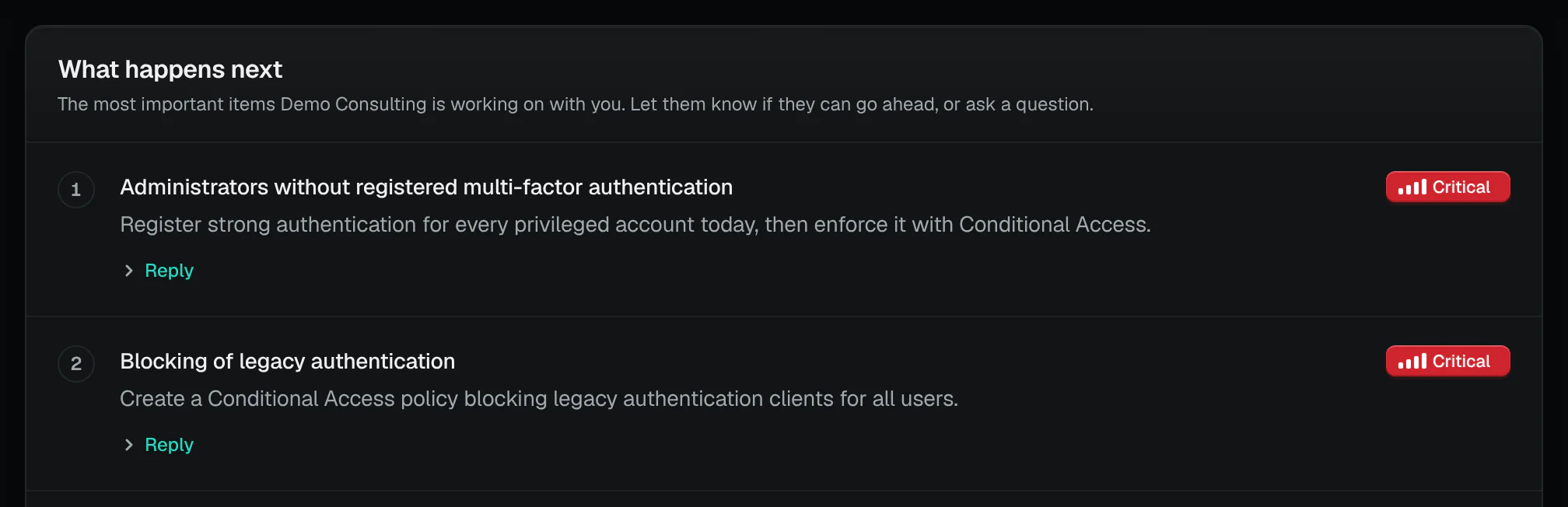
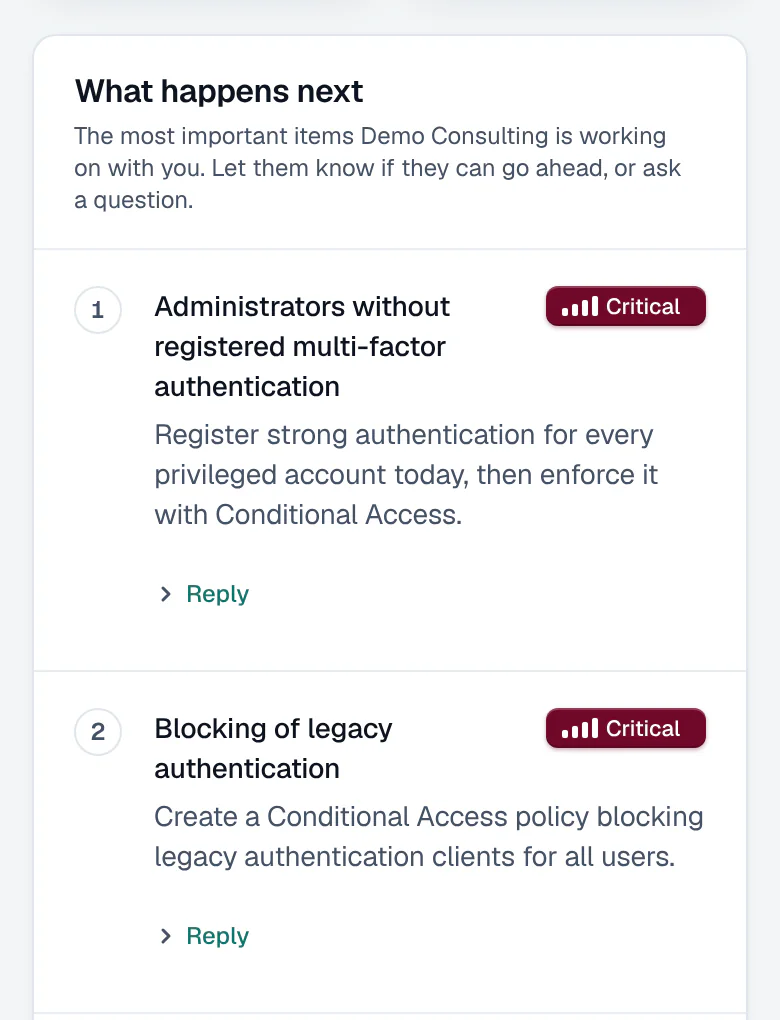
- The next steps, in order
- The client replies to each one
- Documents
- The reports you publish there, framework readiness and Cyber Essentials status. Every opening is logged, with who and when, on the report’s page.
- Access reviews
- The client keeps or removes each admin, guest and app, and signs the review off. Nothing is removed automatically: you act on the answers.
- Evidence packs
- One framework’s evidence for a client’s auditor, shared as a read-only link that lasts at most 90 days. Every open is logged.
- Portfolio report
- Every client, or a tag’s, in one report: scores, the worst findings, fixes and who is slipping. Made when you download it, or sent to your team each month as a link that opens in the console.
- In-house teams
- The portal is the board summary link: one read-only link to a page for your board or management.
Frameworks
Readiness, not certification.
The checks are mapped to 20 frameworks. A readiness report shows how close a client is to each, and says what Microsoft 365 cannot evidence; certification stays with the assessor.
20frameworks the checks are mapped to: readiness, not certification
UK
International
European Union
United States
What it can’t do
- It does not certify anything. A framework report is readiness: certification is the assessor’s, against evidence beyond Microsoft 365.
- It does not email reports as attachments: it sends a link, which can be stopped. You can still download the PDF or Word file yourself.
- A scheduled report goes only when the client’s latest assessment is from the last 45 days; otherwise that one is skipped, so an old picture is never sent as new.
- A report covers what Microsoft 365 shows. Each framework report says which of its requirements Microsoft 365 cannot evidence, such as physical security or backups of on-premises systems.
How we count
- Frameworks checks are mapped to
- 20Counted from the frameworks the checks are mapped to
- Security checks
- 179Counted from the product’s catalogue of checks
Next chapter04 Devices and assets
ConfigCheckup
Connect one tenant. Send its first report.
Read-only towards your tenants, except the changes a person approves. Connect a client; when its first assessment finishes, build its report.
14 days of daily monitoring and alerts, every finding with its fix guide, and reports on up to 3 tenants, from your first connected tenant. No card. Then choose the plan that fits.