Safe changes · for MSPs
Nothing changes in a client’s tenant until you approve it.
Every change is dry-run against the live tenant, approved, logged and read back, with a way back where Microsoft allows one, and a dry run that says so where it does not.
30 days of everything in Automate on up to 3 tenants, from your first connected tenant. No card. Then choose the plan that fits.
One change, start to finish
Contoso Group Ltd · demo tenant
Found medium
Resharing of content by external users (Collaboration & Sharing)
Dry run against the live tenant
Dry run· nothing has changed yet
Stop guests resharing items they do not own
SharePoint tenant settings
- Now
- Allowed
- After
- Not allowed
What the client notices: Guests can still open what was shared with them, but cannot pass it on to others.
Approved
Approved by one or two people, your choice per client; some higher-risk changes always need two. With two, at least one is not the person who raised it.
Logged and read back
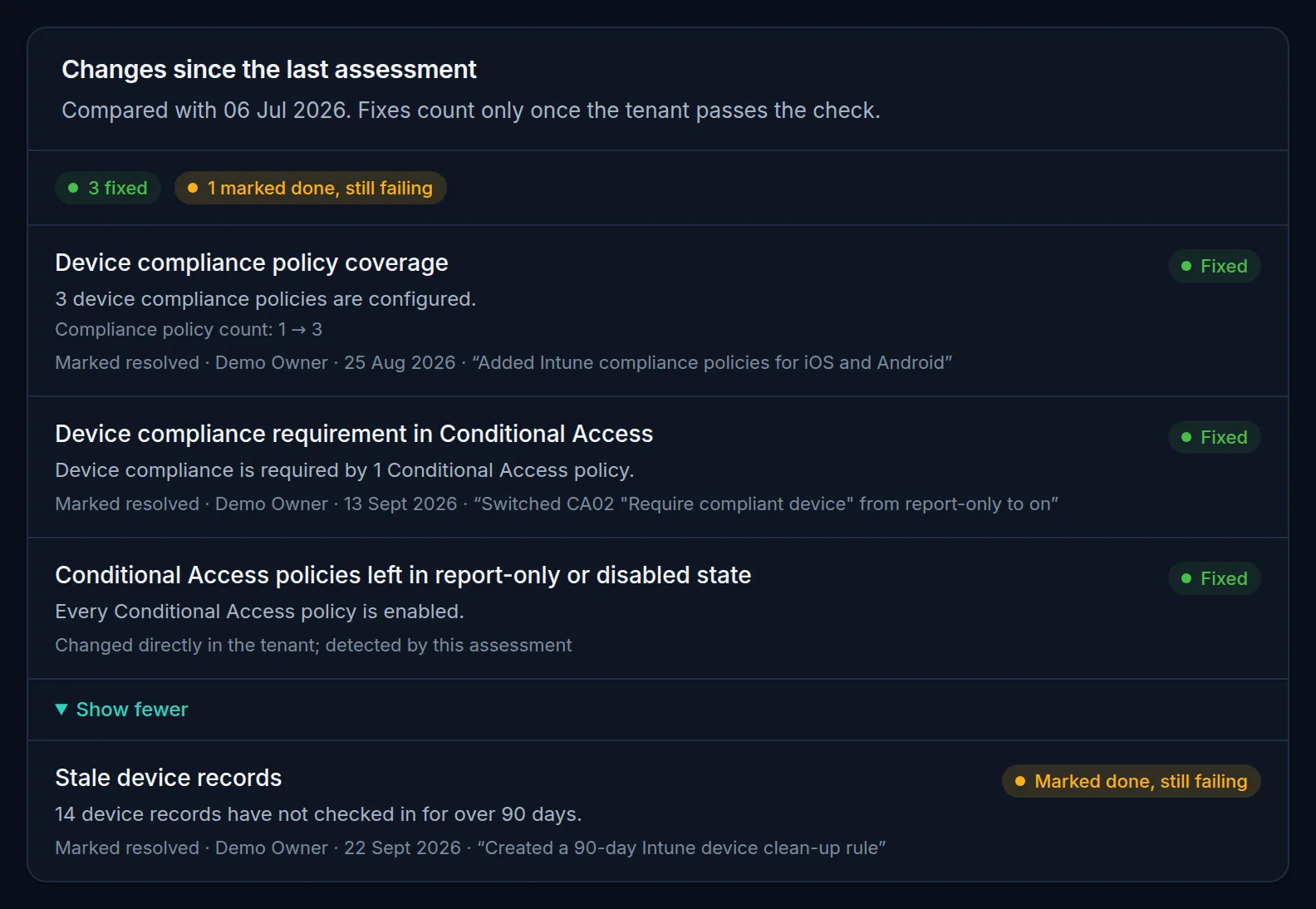
The change and who approved it go in the audit log. Each changed setting is then read back from Microsoft, and the check runs again: a fix counts only when it passes.
/c/contoso › OverviewDemo tenant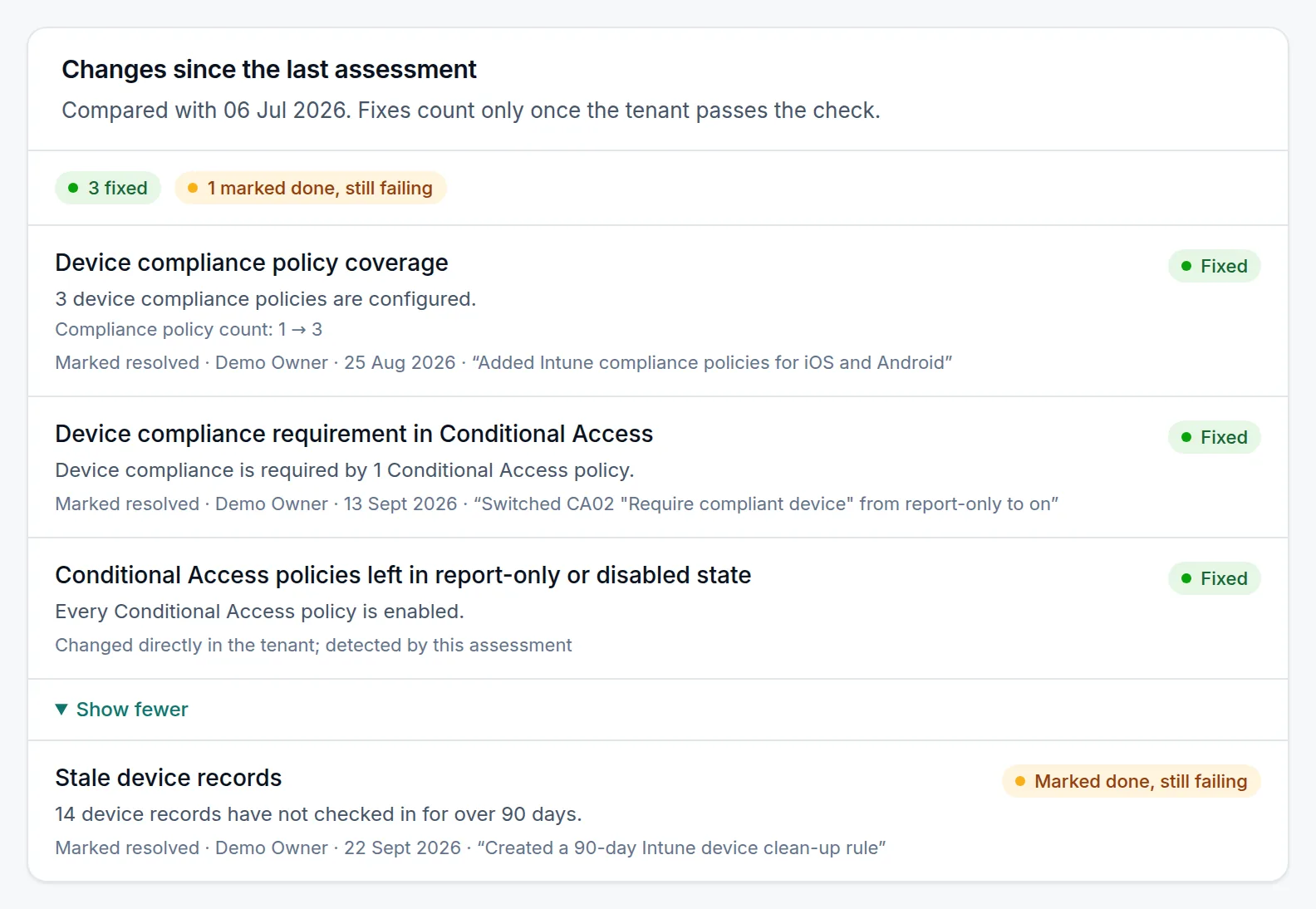
A way back
Where Microsoft allows it, the change can be rolled back. Where it does not, the dry run says so before anyone approves.
The five steps, in detail
The same path for every change: a fix from a finding, a fix across clients, a leaver, a password reset or a seat count.
Found, and drafted
A check fails, or you ask for a change: a leaver, a password reset, a seat count. ConfigCheckup drafts the change. Drafting changes nothing.
Dry run against the live tenant
ConfigCheckup reads the live tenant and lists exactly what would change, what would be skipped and why. A change whose dry run fails cannot be approved. New Conditional Access policies are created in report-only mode, and switching one on is a separate change you approve.
Approved
Approved by one or two people, your choice per client; some higher-risk changes always need two. With two, at least one is not the person who raised it. 13 kinds of change always need two. An approval counts only for the dry run it was given to, and can come from the console, or from Teams or Slack where the change allows it.
Logged and read back
Just before it runs, ConfigCheckup checks again that automation is on, the permissions are still granted and the targets are within limits. Each target’s result is recorded with the request made, and the audit log names who asked and who approved. The changed part of the tenant is then read back and the check runs again: a fix counts only when it passes.
A way back
48 of the 55 kinds of change record the opposite change as they run, and can be rolled back from the change’s page, audited like the original. The 7 that cannot be undone, such as signing someone out everywhere or wiping a device, say so in the dry run before anyone approves.


- The dry run: what is set now, and after
- Reversible, with a recorded rollback plan


- Nothing runs until it is approved
- Every decision is recorded in the audit log
- Approve or reject
Fix one check at every client
Where the same check fails at several clients, prepare the fix at up to 100 of them from one screen, without loosening anything that holds for one client.
- Each client gets its own change, dry-run against its own tenant, with its own approval rule, its own run and its own way back.
- Each client is listed with whether the fix can be prepared there, and if not, why: no automation consent, automation off or paused, an input it needs, or a change already open.
- Approve them together. Each approval is bound to the dry run you were shown; a client that needs two people waits for a second approver, and a dry run that failed or changed cannot be approved from there.
Automate and aboveFixing a check across clients, step by step


- Each client, and why it can or cannot be prepared
- One or two approvers, per client
- The change, and that it can be rolled back
Automatic fixes, inside guardrails
Approve a policy in advance and covered fixes run on their own when an assessment or the drift check finds them failing. Only 35 of the 55 kinds of change can ever run this way; everything else waits for a person.
Start with Simulate: ConfigCheckup records what it would do, with each dry run, and changes nothing.
A fix runs on its own only when
- It can be rolled back, is not high-risk and is not one of the changes that always need two people.
- Its dry run against the live tenant succeeds, and it changes no more objects than the policy’s size limit.
- Automation is on and not paused for the tenant, and the admin who approved the policy is still active. A tenant that needs two approvers needs a second admin to co-sign the policy.
- Fewer than 20 automatic changes have run in the tenant, and fewer than 100 across the workspace, in the last 24 hours. A fix that has run 2 times in 7 days is not holding, so it waits for a person.
Anything else is drafted for approval, with the reason. Each automatic fix is recorded in the approver’s name, checked again, reported to admins by email and in Teams or Slack, and can be rolled back. Pause a tenant, or stop every automatic change at once, at any time.
Containing a taken-over account
From a takeover alert, contain the account in one approved change: sign-in blocked, every session revoked, and inbox rules that send mail outside turned off. Where you turn it on for a tenant, a high-confidence takeover is contained straight away, under the same guardrails; emergency and service accounts can be left out.
Account takeover alertsEveryday admin, with the same safety
Leavers, starters, password resets and devices go through the same dry run, approval and audit log as every fix.
- A reset password is made in the run and shown once to the approver, in the console. It is never stored, emailed or logged.
- An account with any directory role always needs two approvers to reset.
- A full wipe always needs two approvers, each typing the device’s name, and is never approved from Teams or Slack; at most 5 run in a workspace in an hour.
- A Technician can ask for resets, retires and wipes and approve device actions, with no access to billing or settings.
- A one-time access pass is only for an account an approved change created, within 7 days, shown once and never stored.


- Offboard a leaver as one approved change
- Reset a password, shown once to the approver
- Set up a new starter like a colleague
Every kind of change
All 55 kinds of change ConfigCheckup can make, from the product’s own registry. 48 can be undone; 13 always need two people to approve, whatever the client’s setting.
| Change | Can be undone | Always two people |
|---|---|---|
| Add the offices as a trusted named location | Yes | One or two, your choice |
| Apply the Intune device baseline | Yes | One or two, your choice |
| Apply the standard Conditional Access setup (report-only) | Yes | One or two, your choice |
| Ask non-compliant devices to check in now | No, the dry run says so | One or two, your choice |
| Back up local administrator passwords with Windows LAPS | Yes | One or two, your choice |
| Block apps from signing in | Yes | Yes |
| Change an Exchange Online or Defender setting | Yes | One or two, your choice |
| Change the seats on a CSP subscription | Yes | Yes |
| Contain a compromised account | Yes | One or two, your choice |
| Create a Conditional Access policy (report-only) | Yes | One or two, your choice |
| Create emergency access accounts | Yes | Yes |
| Create groups | Yes | One or two, your choice |
| Create user accounts | Yes | One or two, your choice |
| Delete stale groups and Teams | Yes | Yes |
| Disable accounts | Yes | Yes |
| Give groups an owner | Yes | One or two, your choice |
| Label Microsoft 365 groups, teams and sites | Yes | One or two, your choice |
| Limit SharePoint and OneDrive sharing to approved domains | Yes | One or two, your choice |
| Make a custom domain the default | Yes | One or two, your choice |
| Make groups and Teams private | Yes | One or two, your choice |
| Make standing admin roles eligible in PIM | Yes | Yes |
| Move admin roles to cloud-only accounts | Yes | Yes |
| Move Windows devices to a supported release | Yes | One or two, your choice |
| Offboard a leaver | Yes | One or two, your choice |
| Prompt everyone to set up Microsoft Authenticator | Yes | One or two, your choice |
| Protect privileged apps with Conditional Access | Yes | One or two, your choice |
| Publish MTA-STS | Yes | One or two, your choice |
| Publish SPF and DMARC records | Yes | One or two, your choice |
| Remove a directory role assignment | Yes | Yes |
| Remove expired app secrets | No, the dry run says so | One or two, your choice |
| Remove inactive end-of-life devices | Yes | Yes |
| Remove licences from accounts | Yes | Yes |
| Reset password | No, the dry run says so | One or two, your choice |
| Resolve Microsoft Defender alerts | Yes | One or two, your choice |
| Restore Conditional Access from a backup | Yes | Yes |
| Restore SharePoint sharing settings from a backup | Yes | One or two, your choice |
| Retire device | No, the dry run says so | One or two, your choice |
| Revoke delegated consent | Yes | One or two, your choice |
| Revoke sign-in sessions | No, the dry run says so | One or two, your choice |
| Set an expiry on SharePoint "Anyone" links | Yes | One or two, your choice |
| Set security notification contacts | Yes | One or two, your choice |
| Set up a new starter like an existing person | Yes | One or two, your choice |
| Set up Microsoft Purview protection | Yes | One or two, your choice |
| Set usage location | Yes | One or two, your choice |
| Sign outgoing mail with DKIM | Yes | One or two, your choice |
| Stop passwords expiring | Yes | One or two, your choice |
| Switch a Conditional Access policy on (or back to report-only) | Yes | One or two, your choice |
| Switch off directory synchronisation | No, the dry run says so | Yes |
| Tighten a SharePoint sharing setting | Yes | One or two, your choice |
| Tighten a tenant user setting | Yes | One or two, your choice |
| Tighten the default cross-tenant access settings | Yes | One or two, your choice |
| Tighten the sign-in methods people can use | Yes | One or two, your choice |
| Turn off external forwarding rules | Yes | One or two, your choice |
| Turn on the admin consent workflow | Yes | One or two, your choice |
| Wipe device | No, the dry run says so | Yes |
Approved changes come with Automate: see the plans Turning on automation, step by step
See a change made safely, on your own tenant.
Connect one client read-only, then switch automation on for it when you are ready.
30 days of everything in Automate on up to 3 tenants, from your first connected tenant. No card. Then choose the plan that fits.